Shop
Supplement shop
Selling supplements, drinks and accessories at the counter to members or walk-ins, sales on a member's account, the sales list and voids, products and low stock, stock-in from suppliers and stock adjustments
Who it is for:OwnerManagerFront desk
Many gyms sell protein, drinks, shakers, gloves and belts at the reception. GymDesk's shop keeps the stock of each branch, takes the money like any other receipt, and can put a member's purchase on their account to pay later.
The shop pages have tabs at the top: Counter, Sales, Products & stock and Stock-in. Front desk sees Counter and Sales; manager and owner see all four.
Selling at the counter
Open Shop counter. "Sell supplements, drinks and accessories to a member or a walk-in customer. Stock is from (branch)."
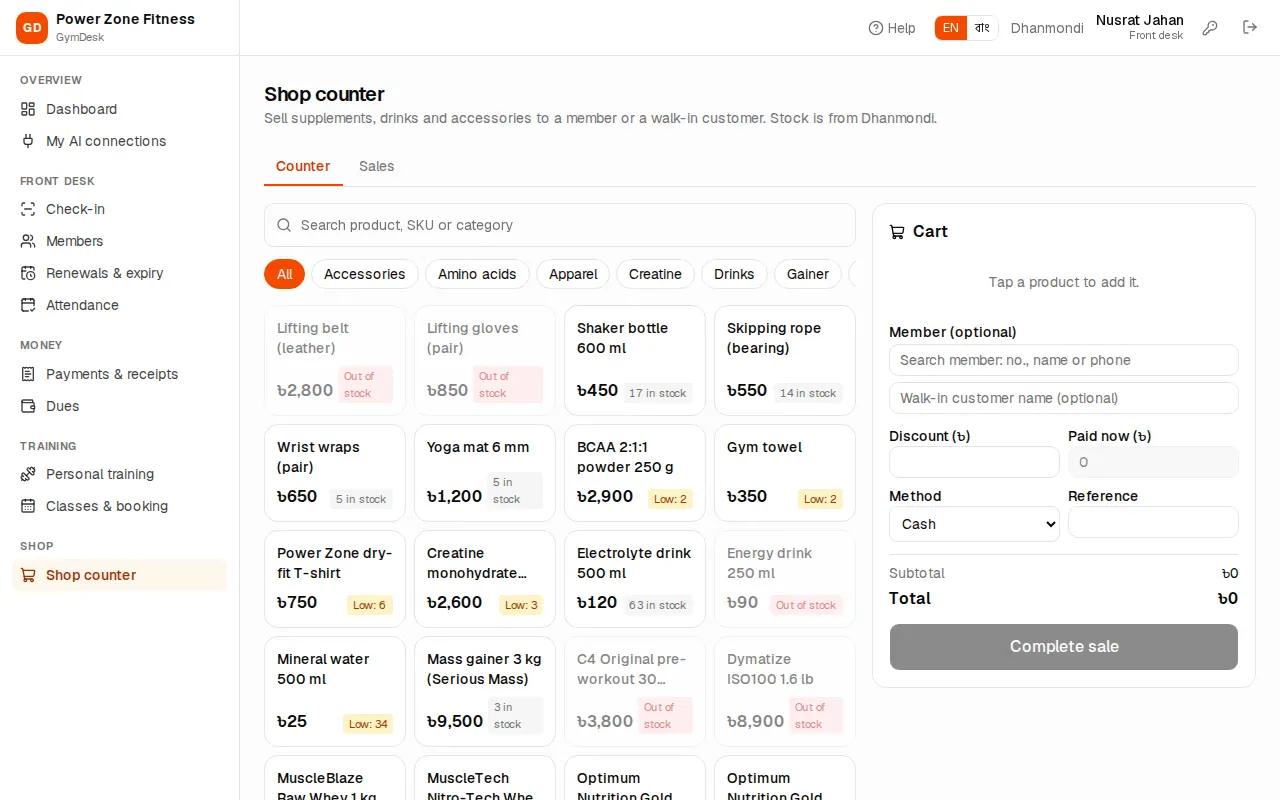
- Find the product: search by name, SKU or category, or tap a category chip. Each product shows its price and stock (Low: N in yellow, Out of stock greyed out).
- Tap the product to add it to the Cart. Use More / Less for the quantity, Remove to take it out.
- Member (optional): pick the member, or type a Walk-in customer name (optional).
- Discount (৳) if any.
- Paid now (৳) and Method (cash, bKash, Nagad, card, bank; bKash / Nagad need the Transaction ID).
- Press Complete sale. "Sale (number) saved." Press Print receipt if the customer wants one.
Paying later: for a member, pay less than the total (even 0). The rest goes On the member's account — it is added to their dues and collected like any other bill. "A walk-in customer must pay the full amount. Pick a member to sell on account."
GymDesk refuses to sell more than is in stock at this branch: "Not enough stock of (name) (in stock: N)."
Sales and voids
Sales lists every counter sale with its items: "A void puts the stock back and cancels its receipt."
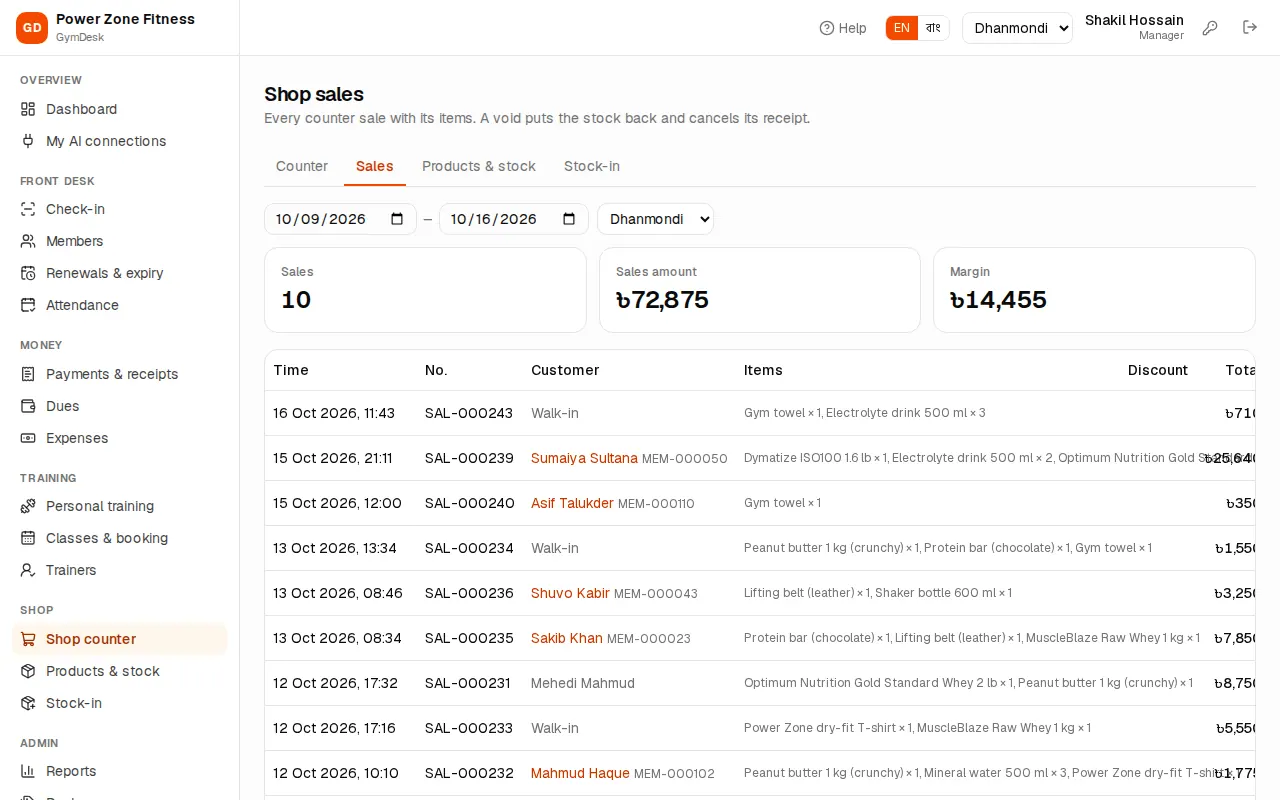
- Filter by date and branch. Tiles show Sales (count), Sales amount and, for manager and owner, Margin (sales less cost).
- Each sale: time, number, customer (member or Walk-in), items, discount, total and a print button.
- Void (manager and owner): type a Reason and press Void sale. "The items go back into stock and the receipt is cancelled. Give any money back by hand."
Products and stock
Products & stock (manager and owner): "Products with stock at each branch. Stock changes only by stock-in, sales and adjustments."
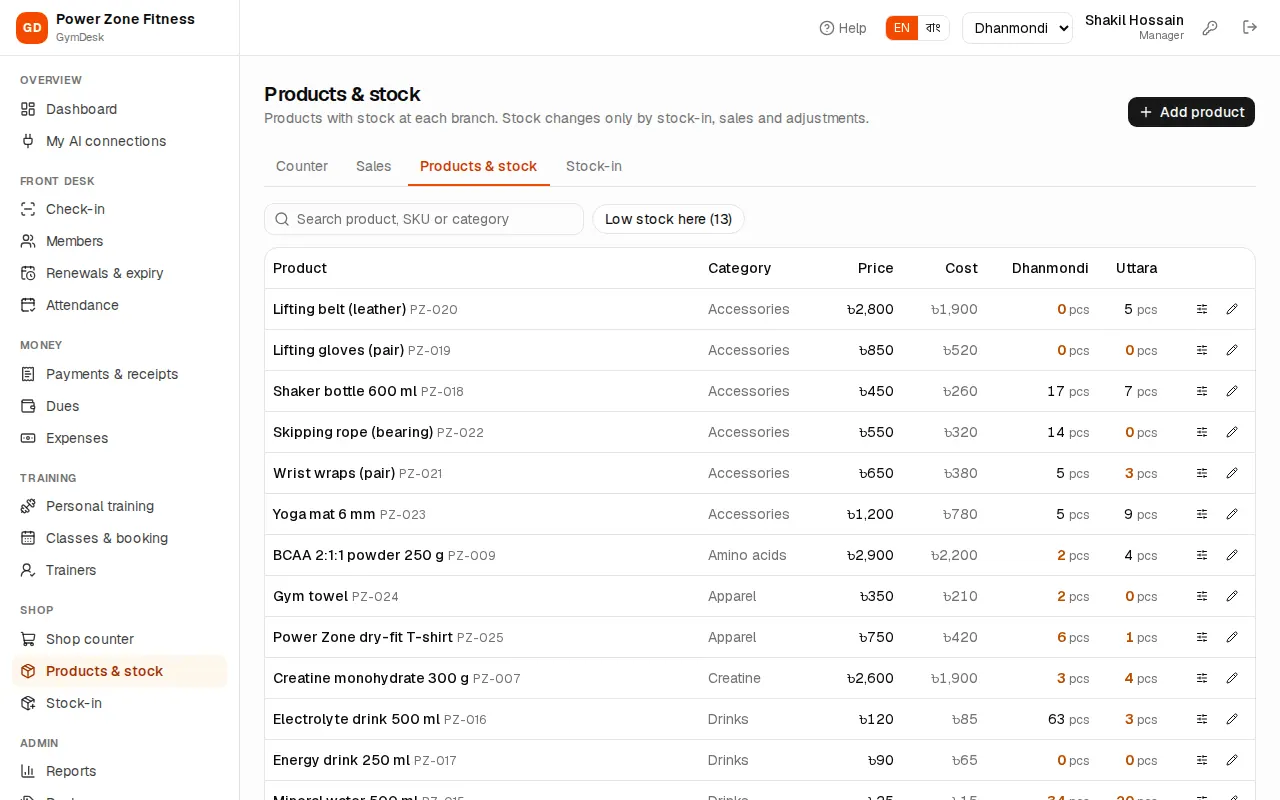
To add a product:
- Press Add product.
- Name, Name in Bangla, Category (for example "Protein"), SKU / code and Unit.
- Low-stock level — when the branch's stock falls to this number the product is counted as low stock (dashboard tile, the Low stock here filter and the Low stock report).
- Selling price (৳) and Cost price (৳) — the cost is updated by each stock-in.
- Sold at the counter — untick to stop selling it (history stays).
Low stock here (N) shows only products at or below their level at this branch.
Adjusting stock (damaged, expired, a stock count): press Adjust on the product. It shows the stock "At (branch) now". Enter the Change (+ add / − remove), for example -2, and a Reason (for example "damaged"), then save.
Stock-in
Stock-in: "Products received from suppliers at (branch). Each stock-in adds stock and updates the product's cost."
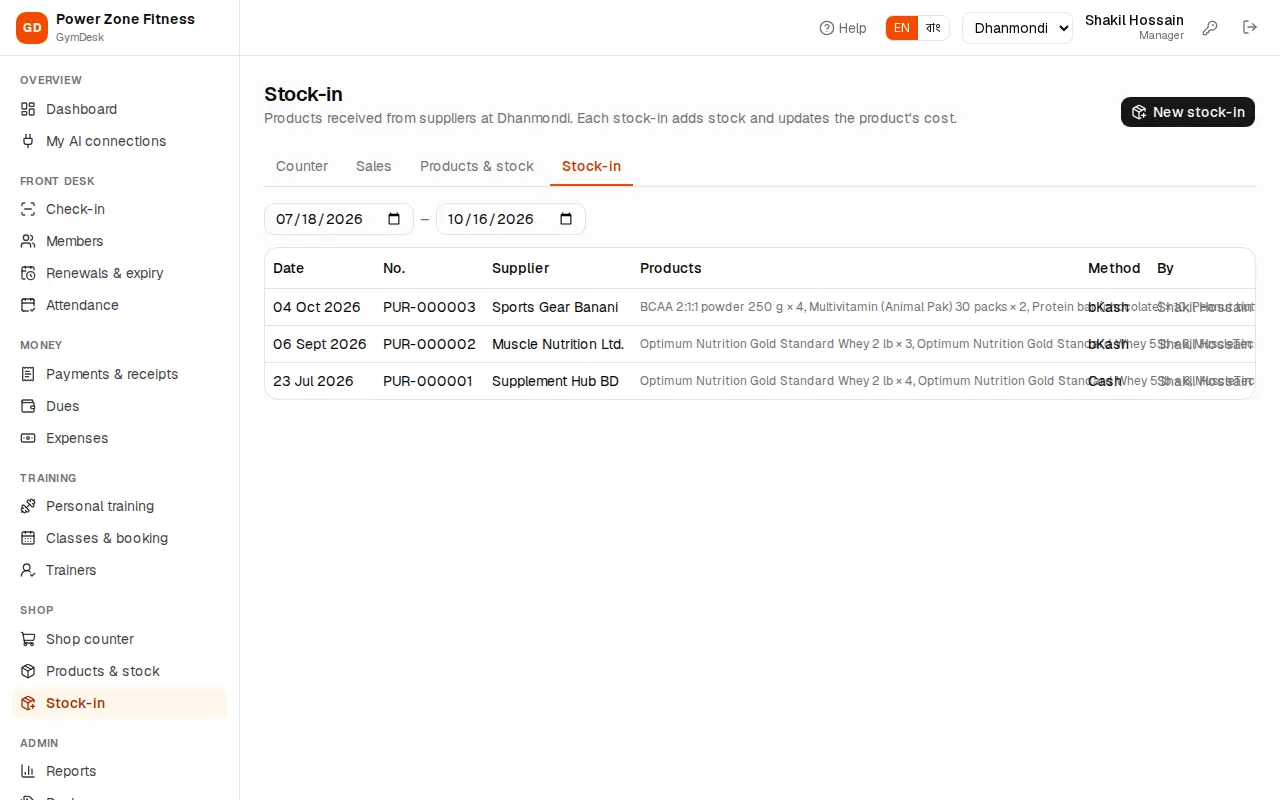
- Check the branch in the header — stock is added to that branch.
- Press New stock-in.
- Supplier, Date and Paid by.
- For each product: pick the Product, the Qty and the Unit cost (৳). Add line for more products.
- Note if needed, check the Total and press Save stock-in.
The list shows each stock-in with date, number, supplier, products, method, who entered it and the total. Stock purchases count as spending in the profit & loss report.