For members
Member portal
For members — signing in with mobile number and PIN, your membership and dues, your check-in QR code, paying dues and renewing online, booking classes, PT sessions, attendance, receipts and changing your PIN
Who it is for:MemberOwnerManagerFront desk
On this page
The member portal is the gym's website for its members. It works on any phone browser — nothing to install. Members see their own membership, dues, attendance, PT sessions and QR code, book classes and pay online. They see only their own data.
The gym turns it on under Settings › Member portal (and it must be part of the gym's licence). This chapter is written for members; staff can share it with them.
Getting a PIN
The portal uses your mobile number and a PIN (no password).
- Ask at the front desk to activate the portal for you.
- The desk presses Activate portal on your profile. You get a 6-digit PIN by SMS (or the desk tells you).
- Change it to your own PIN after the first sign-in (see Changing your PIN).
Forgot the PIN? "No PIN yet or forgot it? Ask at the front desk — they can send you a new one by SMS."
Signing in
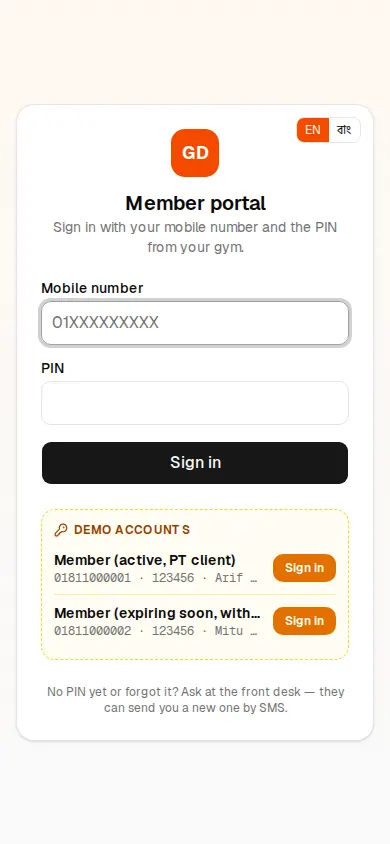
- Open your gym's GymDesk address followed by
/portal(for examplehttps://gym.jonakisoft.com/portal). Add it to your phone's home screen for next time. - Type your Mobile number and your PIN.
- Press Sign in.
If your family shares one number, the portal asks "This number has more than one membership. Who are you?" — tap your name.
"Wrong mobile number or PIN" — check both. After 10 wrong tries you must wait 15 minutes. "The member portal is turned off for this gym" — ask at the front desk.
Home: my membership
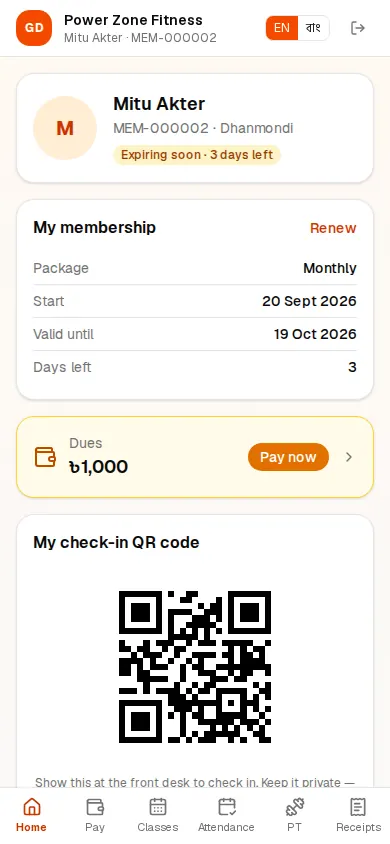
- My membership: your Package, Start, Valid until, Days left and, for packages with a visit limit, Visits used. While frozen it shows the freeze dates and Freeze days left. A Renew button takes you to online payment.
- Dues: what you owe, or Nothing due. Pay now opens the payment page.
- My check-in QR code: show it at the front desk to check in. "Keep it private — it works like your member card."
- Group classes: your next booked class and Book a class.
- Personal training: sessions left with your trainer.
- Change my PIN.
The portal menu: Home, Pay, Classes, Attendance, PT and Receipts. Classes and PT appear only if the gym offers them.
Paying online
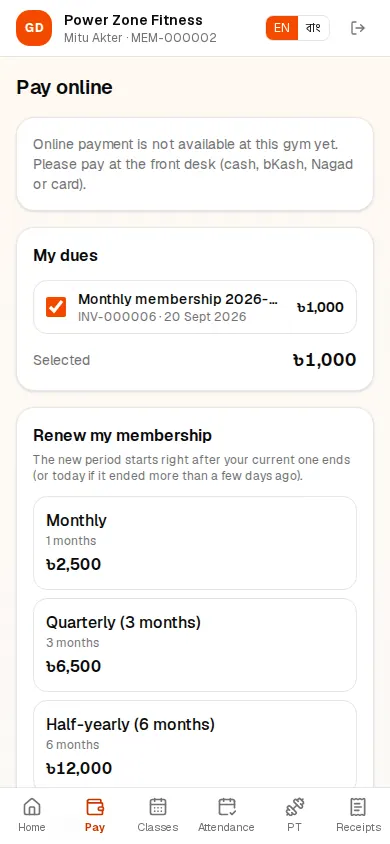
Open Pay:
- My dues — all your unpaid bills are ticked; untick any you do not want to pay now. Press Pay with bKash, Pay with Nagad or Pay with SSLCommerz (card / internet banking).
- Renew my membership — pick a package. "The new period starts right after your current one ends (or today if it ended more than a few days ago)." The amount includes the admission fee on a first membership. Press a pay button.
You are taken to the gateway's page to pay. When it is done you come back to the gym's page and the receipt appears under Receipts. "Payments are confirmed with the gateway before your receipt is issued. Refunds are handled by the gym."
If the gym has not set up online payment you see "Online payment is not available at this gym yet. Please pay at the front desk (cash, bKash, Nagad or card)."
Booking classes
Open Classes:
- My bookings — your booked classes (and your Waitlist #N place).
- Below, the classes of the coming days with N places free, or Full · N waiting. Tap Book to book a place ("Booked! See you in class."), or Join waitlist when it is full. If someone cancels, the first person on the waitlist gets the place and an SMS.
- To cancel, tap Cancel on your booking. "Cancel at least N hours before the class."
You need a running membership that includes group classes on that day. "Online booking is turned off. Please book at the front desk." means the gym takes bookings only at the desk.
PT, attendance and receipts
- PT — your trainer, Sessions left, Valid until and Session history (Done or Missed).
- Attendance — days you came in the last 30 and 60 days, and every check-in of the last 60 days.
- Receipts — every payment; open one to see the Money receipt and press Print (or save it as PDF).
Changing your PIN
- Press Change my PIN on the home page.
- Type your Current PIN, then New PIN (4–8 digits) and New PIN again.
- Press Change PIN. "Your PIN is changed. Use the new PIN next time you sign in."
Easy PINs like 1234 or 0000 are refused. Changing the PIN signs you out on every other phone.
For staff: when the portal is paused
If the gym's licence is locked the portal shows "The member portal is paused" — members' data is safe and the portal opens again as soon as the licence is active. See Licence, online payments and AI.