Training & classes
Classes and booking
Class types and the weekly timetable per branch, the day view, booking members, the waitlist, cancelling, marking attendance and walk-ins, and how members book in the portal
Who it is for:OwnerManagerFront deskTrainer
On this page
Group classes — Yoga, Zumba, HIIT, Spinning, CrossFit, Kickboxing — run on a weekly timetable at each branch. Each class has a capacity; when it is full, members go on a waitlist and the first one gets a place as soon as somebody cancels.
Setting up the timetable
Manager and owner: open Classes & booking and press Timetable setup: "Class types and the weekly timetable of each branch."
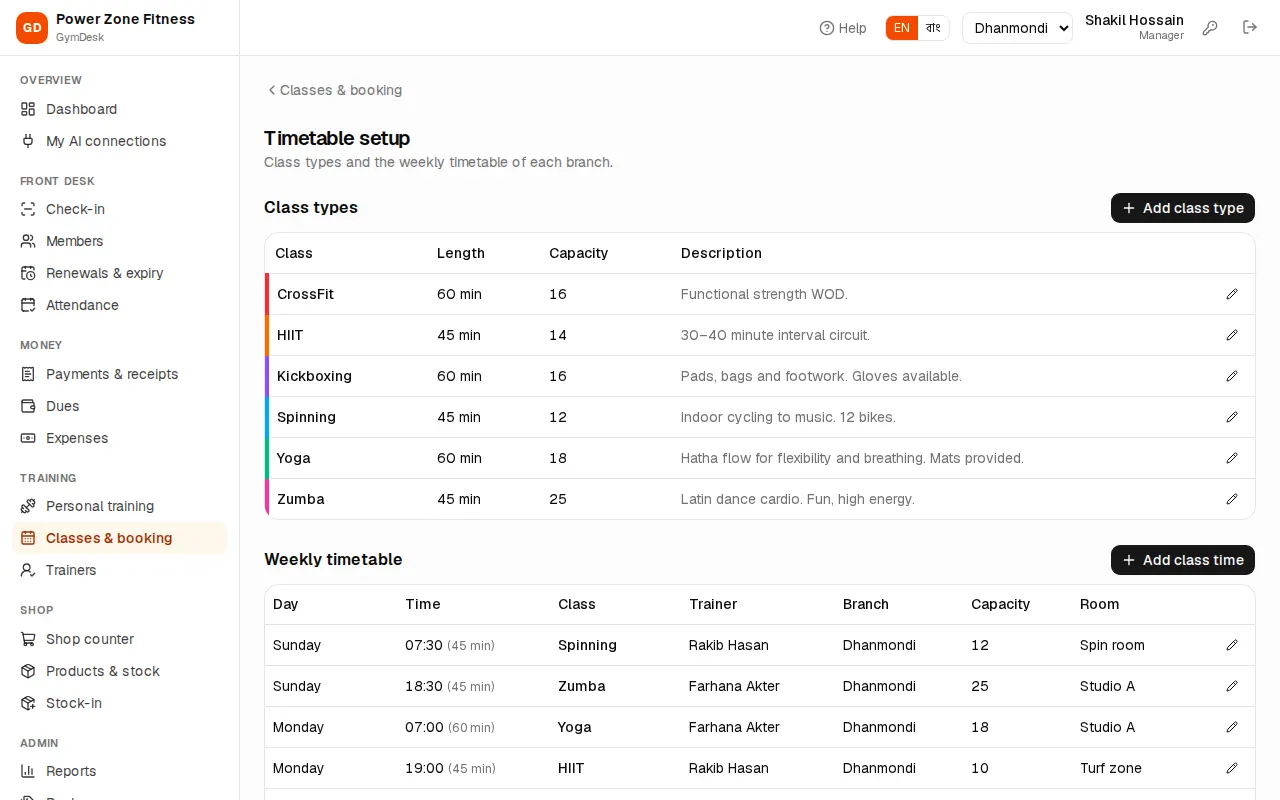
Class types — what you teach:
- Press Add class type.
- Name (for example "Zumba"), Name in Bangla, Length (minutes), Default capacity, Colour and Description.
- Save.
Weekly timetable — when each class runs:
- Press Add class time.
- Pick the Class, the Branch, the Day (for example Saturday) and Starts at (for example 07:00).
- Length (minutes) and Capacity (filled from the class type; change them for this time if needed).
- Trainer (or No trainer) and Room (for example "Studio A").
- Save. Add one row for every day and time the class runs.
To change a time press Edit class time. Untick Active to drop it: "Inactive classes disappear from the timetable; past bookings are kept."
The day view
Classes & booking shows the classes of one day at the branch in the header.
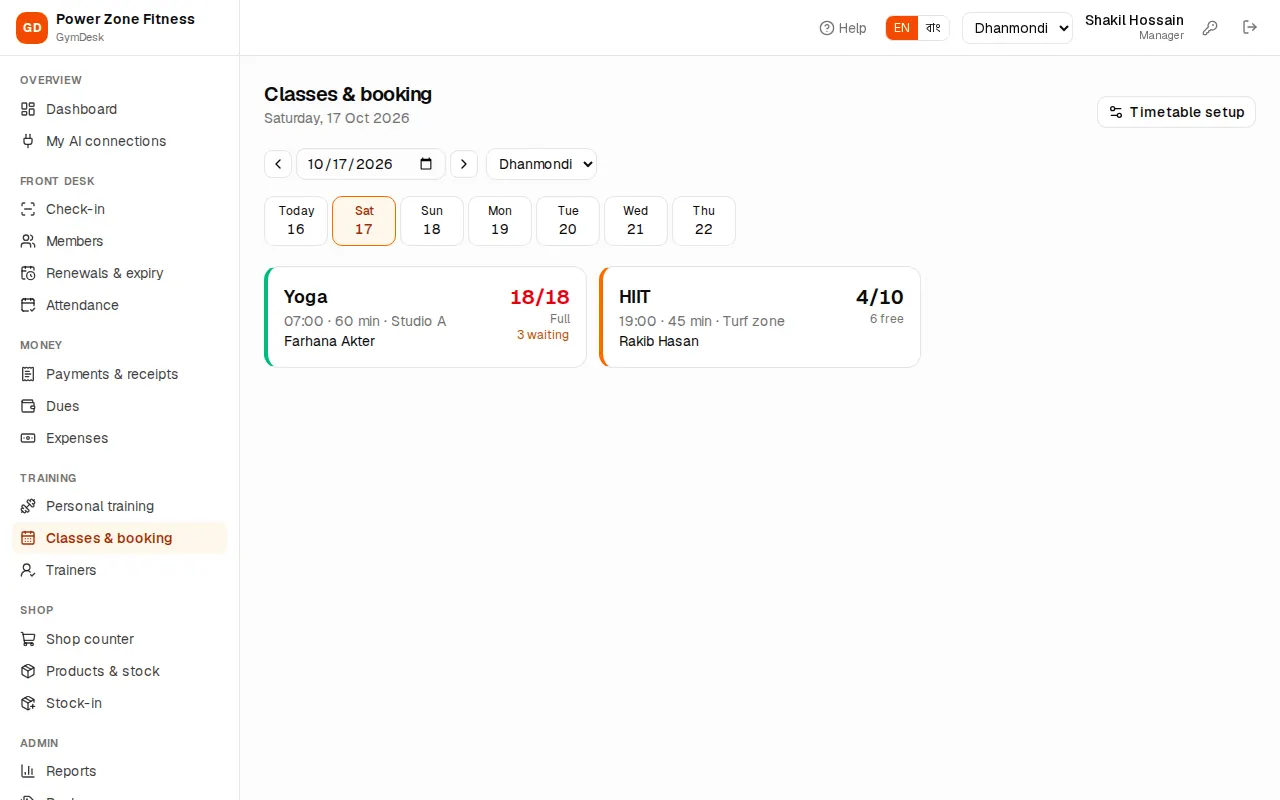
- Pick a day from the row of days (the first one is Today) or with the date box.
- Each class shows time, length, trainer, room and either N free or Full, plus N waiting and, after the class, N attended.
- Trainers can press Only my classes.
Click a class to open its Class roster.
Booking a member
Front desk, manager and owner.
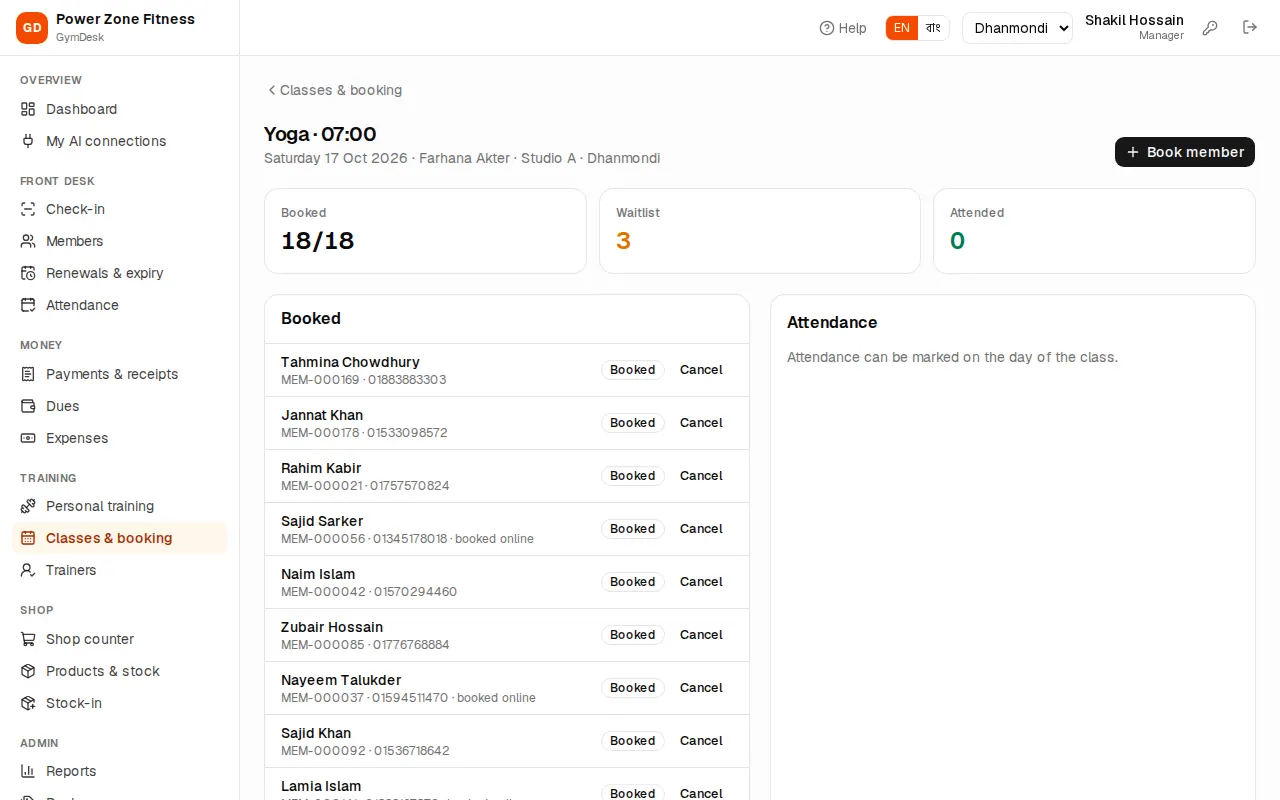
- Open the class on the right day.
- Press Book member, pick the member and press Book.
- "When the class is full the member goes on the waitlist and gets the first free place."
The roster has two lists: Booked (with "booked online" for portal bookings) and Waitlist in order. Classes can be booked as many days ahead as Booking opens (days ahead) in Settings, and not after the class has started.
Cancelling: press Cancel next to the member and confirm. If anyone is waiting, "Cancelled — the first member on the waitlist got the place", and that member gets an SMS if class booking messages are on.
Marking attendance
The trainer of the class, the front desk, the manager or the owner marks who came. "Attendance can be marked on the day of the class."
- Open the class roster.
- Under Attendance mark each booked member Attended or No-show.
- Somebody came without booking? Add a walk-in: pick the member.
- Press Save attendance. "Attendance saved."
No-shows and attendance are counted in the Class attendance report. A member's bookings and attendance are on their profile under Class bookings.
Members booking in the portal
When Members may book classes is on in Settings, members book from Classes in the member portal. The portal applies these rules:
- the member needs a running membership on the class day whose package Includes group classes, valid at that branch;
- booking opens the set number of days ahead;
- members can cancel until the set number of hours before the class ("Cancel at least N hours before the class").
When booking is off, the portal says "Online booking is turned off. Please book at the front desk." See Member portal.