Getting started
Getting started
What GymDesk is, signing in, what is where on the screen, the dashboard, switching language and branch, your password, which menus each role sees, using it on a phone and starting a free trial
Who it is for:OwnerManagerFront deskTrainer
On this page
GymDesk runs a gym or fitness centre in one place: members and their memberships, renewals and freezes, the check-in desk with QR cards, money receipts and dues, personal training (PT) with trainer commission, group classes with booking and waitlist, the supplement shop, SMS reminders and reports. Members get their own member portal on their phone to see their plan, show their QR code, book classes and pay online. This chapter covers the first-day basics so everyone can start with confidence.
The guide uses the demo gym Power Zone Fitness as its example: two branches (Dhanmondi and Uttara), about 180 members, four trainers and a supplement counter.
Signing in
GymDesk runs in a web browser on a computer, tablet or phone. Chrome or Edge work best. Staff sign in with their Mobile number and Password.
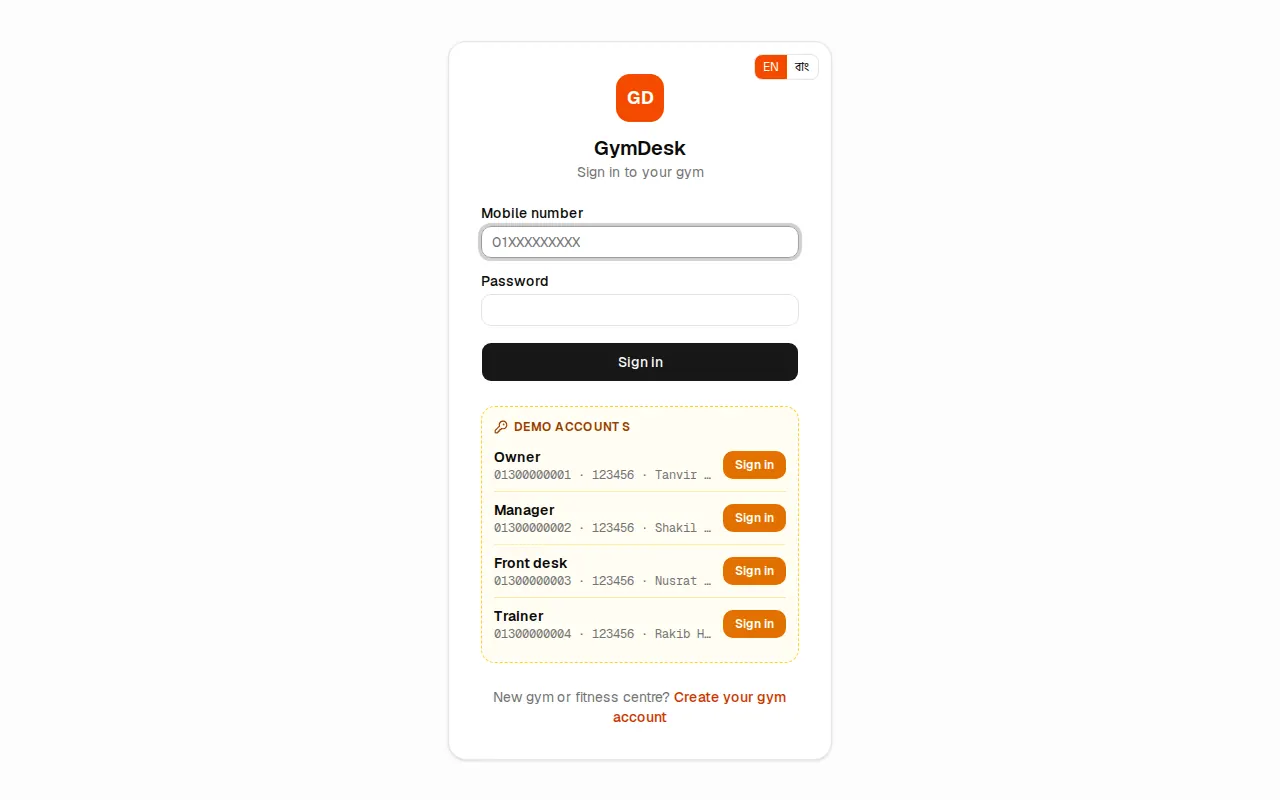
- Open your gym's GymDesk address in the browser. The page says "Sign in to your gym".
- Type your 11-digit number in Mobile number (for example
01XXXXXXXXX). - Type your Password.
- Press Sign in.
Staff logins are created by the owner on the Users & roles page (see Owner setup). Members do not use this page: they sign in to the member portal at /portal with their mobile number and a PIN (see Member portal).
After signing in, each person lands on the page for their main job:
| Role | Page that opens after sign-in |
|---|---|
| Owner, Manager | Dashboard |
| Front desk | Check-in |
| Trainer | My PT clients |
The EN | বাং switch at the top right of the sign-in page lets you pick the language before signing in.
What is where on the screen
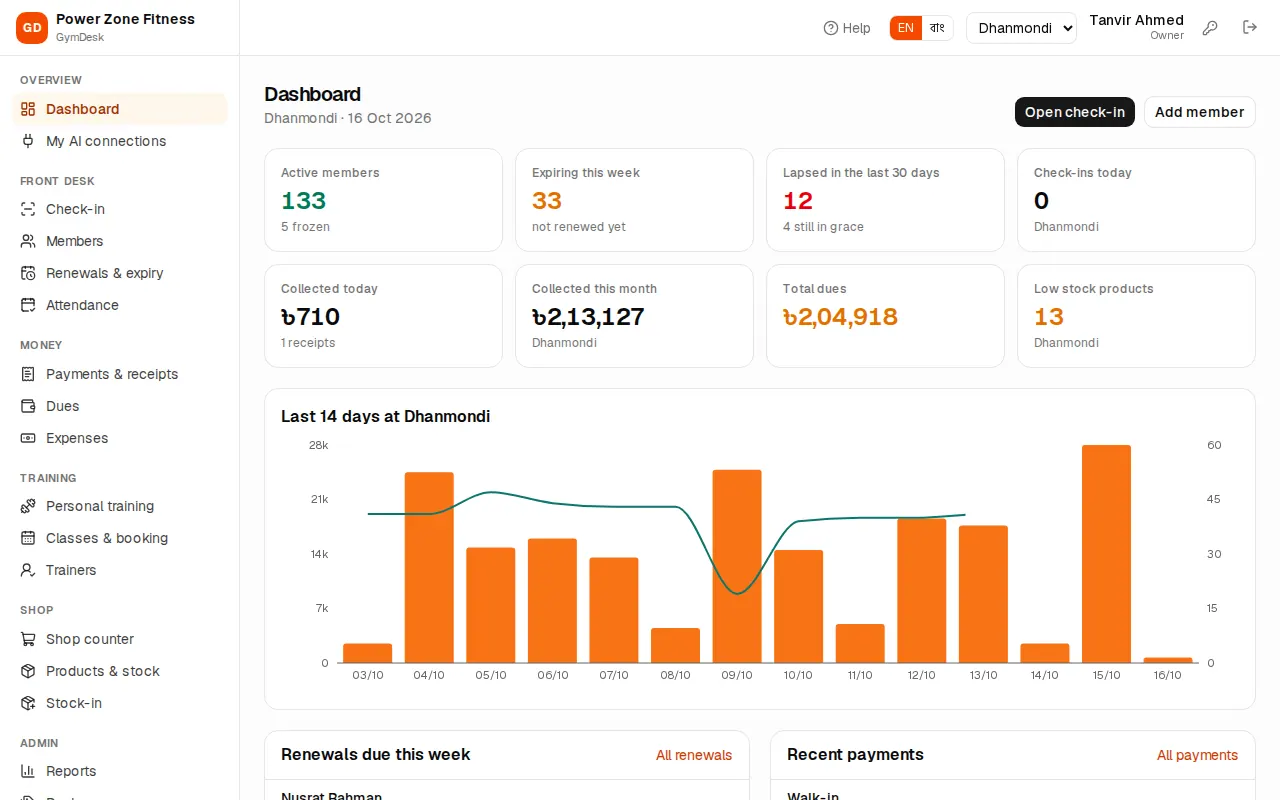
Left menu (sidebar): the gym's name at the top, then the menu in groups: Overview, Front desk (check-in, members, renewals, attendance), Money (payments, dues, expenses), Training (personal training, classes, trainers), Shop and Admin (reports, packages, SMS & WhatsApp, settings, branches, users, audit log). The page you are on is highlighted in orange. Menus your role may not use are not shown, and modules your gym's licence does not include are hidden too.
Top bar (header), left to right:
- Help (question-mark icon): opens the guide chapter for the page you are on, in a new tab, so a half-done sale or check-in is not lost.
- EN | বাং: the language switch.
- The branch name. If you may work in several branches, this is a drop-down.
- Your name and role, for example "Front desk".
- Key icon: change your own password.
- Door icon: sign out. Always press it before leaving a shared computer.
Yellow banner at the top: when the gym's licence has expired, GymDesk still works for a few grace days and every page shows "Your licence has expired. GymDesk keeps working until (date); please renew." with a Details link. See Licence, online payments and AI.
The dashboard
The dashboard (owner, manager and front desk) shows the branch selected in the header and today's date. At the top are two shortcuts: Open check-in and Add member.
The tiles:
- Active members (with how many are frozen), Expiring this week (not renewed yet), Lapsed in the last 30 days (with how many are still in the grace period) and Check-ins today.
- For people who handle money: Collected today (with the number of receipts), Collected this month and Total dues — click the dues amount to open the Dues list.
- With the shop: Low stock products — click it to open Products & stock.
Below the tiles:
- Last 14 days at (branch): orange bars are the money collected each day (left scale, ৳), the green line the check-ins (right scale).
- Renewals due this week: whose membership ends in the next few days. All renewals opens the full list.
- Recent payments and All payments.
- Today's classes: each class with its trainer, how many are booked and how many are waiting. Click a class to open its roster.
Switching language
- Find the EN | বাং switch in the header.
- Press বাং for Bangla or EN for English.
The whole app changes at once and the choice is saved to your account. Users who never chose a language see the gym's Default language (Settings › Language).
Switching branch
Each branch has its own check-in desk, cash, shop stock and class timetable. Members, packages and trainers are shared by all branches; a member's package may still be limited to some branches.
- Open the branch drop-down in the header (for example Dhanmondi or Uttara).
- Pick the branch you are working at. The page reloads.
If you see only a branch name instead of a drop-down, your login is tied to that one branch. In the demo, front desk Nusrat Jahan works only at Dhanmondi.
Changing your password
Everyone can change their own password.
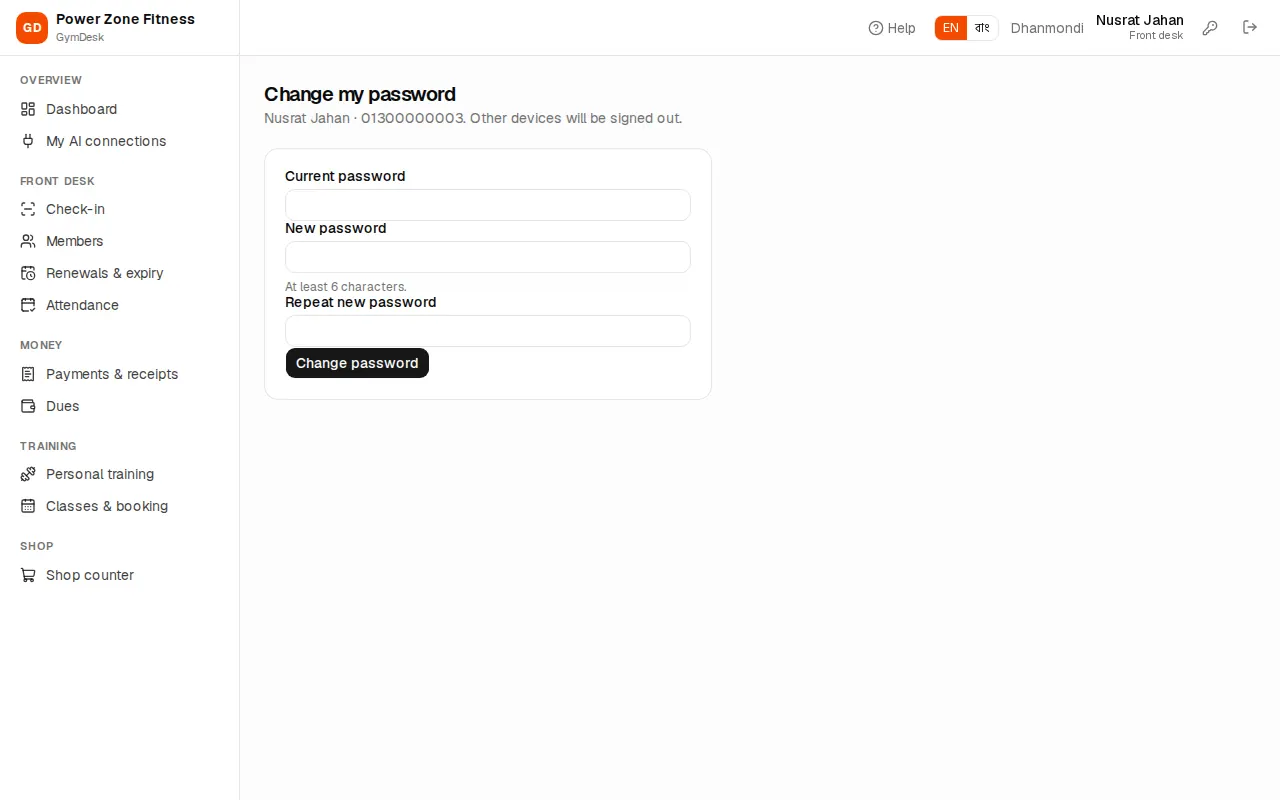
- Press the key icon in the header (owners and managers can also use the My password button on the Settings page).
- Type your Current password.
- Type a New password of at least 6 characters.
- Type it again in Repeat new password.
- Press Change password. "Password changed" means it worked.
You stay signed in on this device; all your other devices are signed out. Changing the password also disconnects any AI app linked to your account.
What each role sees
Every user has exactly one role. The role decides which menus appear and which buttons work.
| Role | Main work | In the sidebar |
|---|---|---|
| Owner | Everything | Every menu, including Integrations, Online payments and Users & roles |
| Manager | Runs the gym: packages, discounts above the desk limit, cancellations and upgrades, voids, expenses, trainers, timetable, shop stock, reports, messages, settings | Everything except Integrations, Online payments and Users & roles |
| Front desk | Check-in, adding members, selling and renewing memberships, freezes, collecting payments, PT sales, class bookings, shop counter | Dashboard, Check-in, Members, Renewals & expiry, Attendance, Payments & receipts, Dues, Personal training, Classes & booking, Shop counter |
| Trainer | Only their own PT clients and their own classes: logging sessions, marking class attendance; members' basic profile and health notes (no money) | My PT clients, Check-in, Members, Personal training, Classes & booking |
If a page says you have no access, it is not meant for your role. If you really need it, ask the owner to change your role. The full list of permissions is at the bottom of the Users & roles page under What each role can do.
Using it on a phone
GymDesk needs no separate app; it runs in the phone's browser.
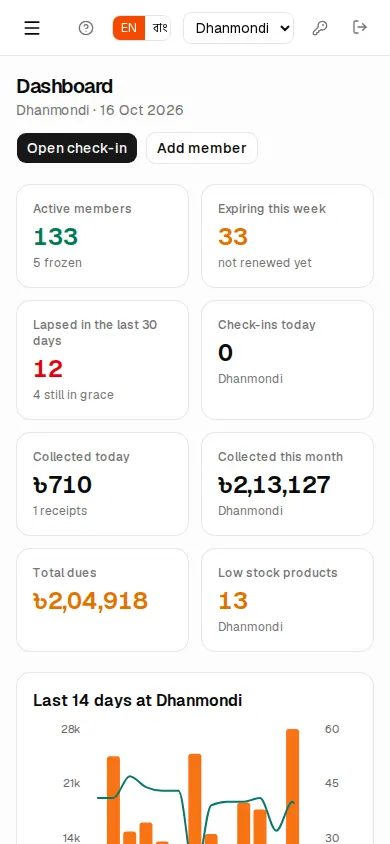
- The sidebar is hidden. Tap the three-line (☰) button at the top left to open the menu; it closes by itself when you pick a page.
- To save space the header shows Help as a question-mark icon only and hides your name and role.
- Member lists turn into cards; wide tables (for example reports) scroll sideways with a finger.
- A tablet or phone at the reception works well as the check-in desk, with its camera as the QR scanner (see Check-in and attendance).
Starting a free trial
A new gym can start GymDesk on its own. Press Create your gym account at the bottom of the sign-in page.
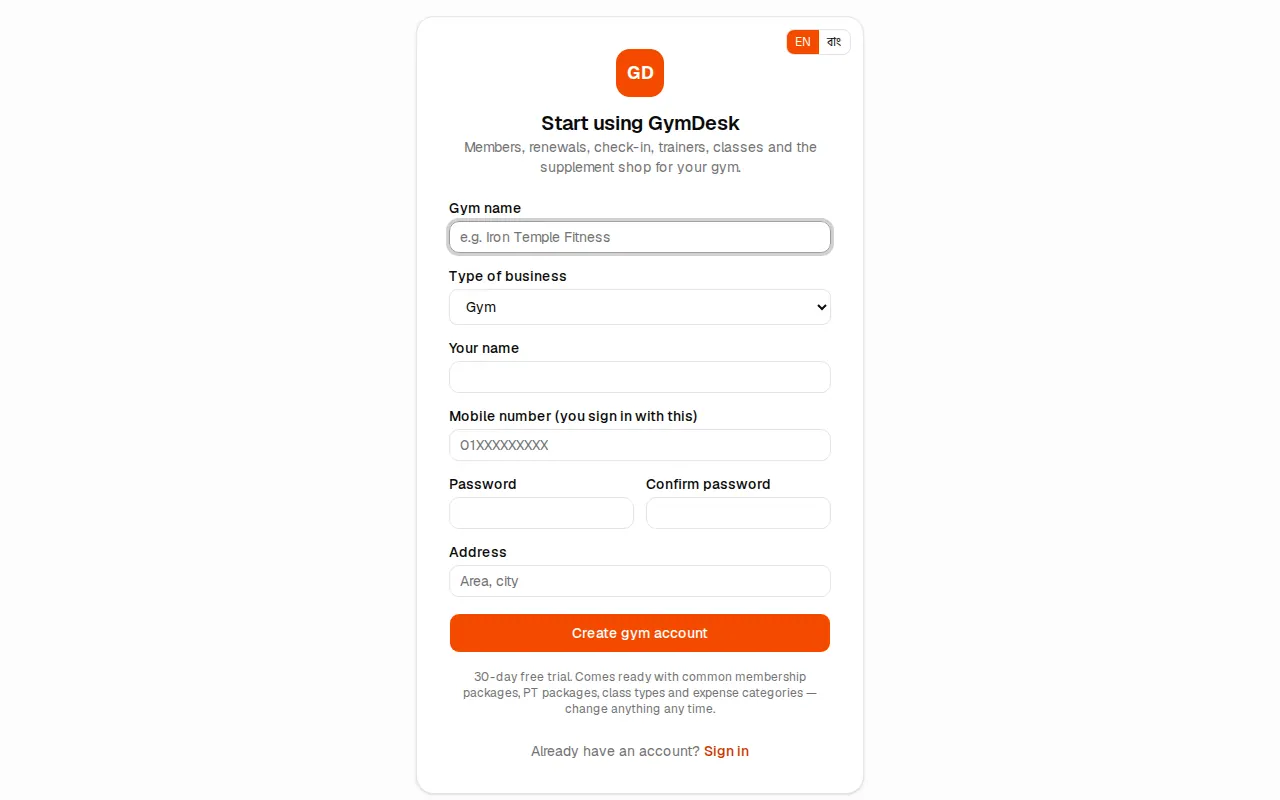
- Type the Gym name.
- Pick the Type of business: Gym, Fitness centre, Ladies gym, Yoga studio, Martial arts, CrossFit / functional or Other.
- Enter Your name and Mobile number (you sign in with this).
- Enter Password and Confirm password (at least 6 characters). Address is optional.
- Press Create gym account. A few seconds later you are signed in as the owner on the dashboard.
A 30-day free trial starts. GymDesk comes ready with:
| What | Starter setup |
|---|---|
| Branch | "Main branch" (code MAIN) |
| Membership packages | Monthly ৳2,500, Quarterly (3 months) ৳6,500, Half-yearly (6 months) ৳12,000, Yearly ৳22,000, Day pass ৳300 |
| PT packages | PT 8 sessions (45 days), PT 12 sessions (60 days), PT 24 sessions (100 days) |
| Class types | Yoga, Zumba, HIIT |
| Expense categories | Rent, Staff salary, Trainer commission, Electricity, Water & gas, Internet & phone, Equipment & repair, Cleaning, Marketing, Other |
Everything can be changed later.
Where to go next
- Owners and managers: Owner setup, then Packages.
- Front desk: Members, Memberships and renewals and Check-in and attendance.
- Money: Payments, dues and expenses.
- Trainers: Personal training and trainers and Classes and booking.
- Members: Member portal.
- Something wrong? Troubleshooting. Unknown word? Glossary.