Training & classes
Personal training and trainers
Trainer profiles and commission rates, selling (assigning) a PT package, logging sessions and no-shows, the trainer's own page, cancelling PT and the commission report
Who it is for:OwnerManagerFront deskTrainer
On this page
Personal training (PT) is a package of sessions a member buys with one trainer, for example "PT 12 sessions" with Rakib Hasan, to be used within 60 days. The trainer marks each session as done; GymDesk counts what is left and works out the trainer's commission.
Trainers
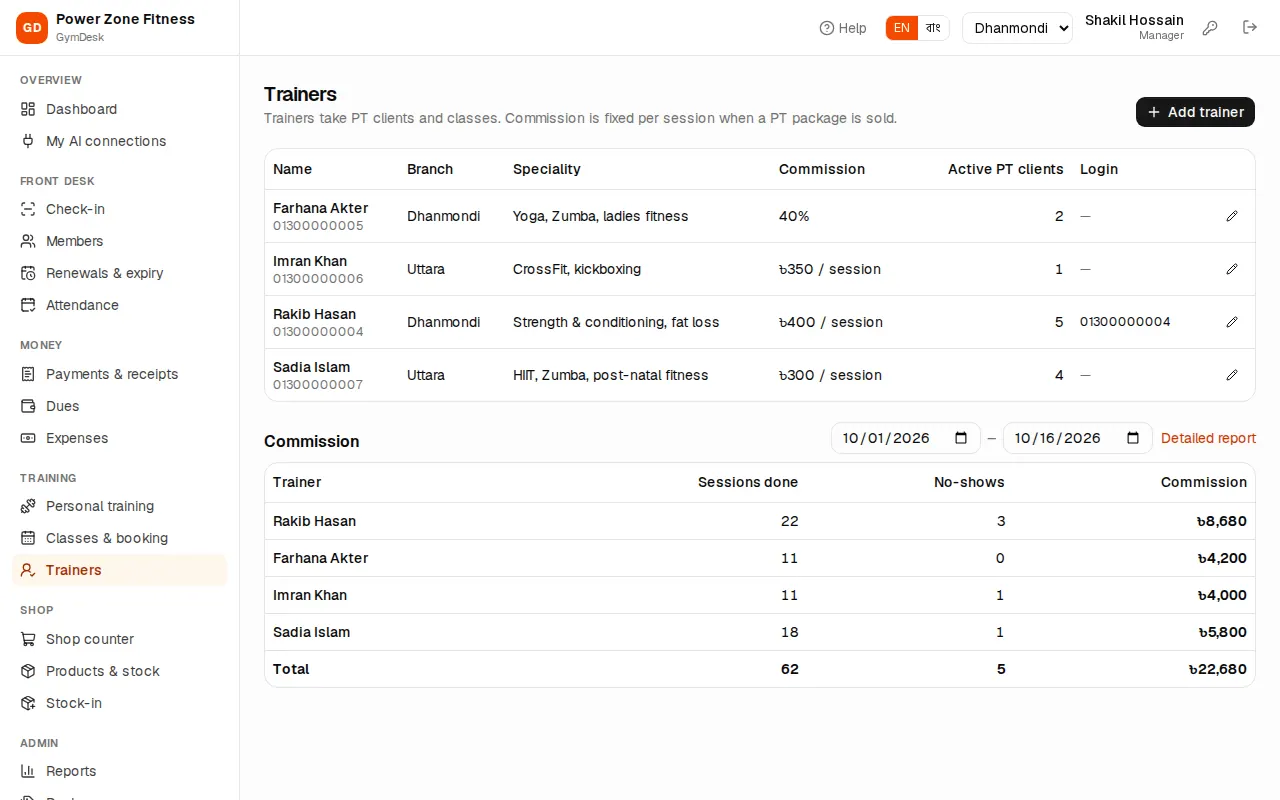
Trainers (manager and owner): "Trainers take PT clients and classes. Commission is fixed per session when a PT package is sold."
- Press Add trainer.
- Name, Name in Bangla, Phone, Branch (or All branches) and Speciality (for example "Strength, fat loss, yoga").
- Commission: Fixed ৳ per session (for example ৳400 per session) or % of the PT price (for example 40% of the package price, spread over its sessions). Enter the Rate (৳ or %). "A PT package can set its own rate per session."
- Login (trainer role): pick the trainer's login, or No login. "Create the login under Users & roles with the Trainer role."
- Bio and Active, then save.
The list shows each trainer's commission rate, active PT clients and whether a login is Linked. Untick Active when a trainer leaves.
Selling a PT package
Front desk, manager and owner can sell PT.
- Open Personal training and press Assign PT.
- Pick the Member, the Trainer and the PT package (it shows "N sessions, valid D days").
- Start date and an optional Note (for example the member's goal).
- Discount, Paid now (৳) and Method as with memberships.
- Press Assign. "PT package assigned."
A PT bill is added to the member's dues, and the commission per session is fixed now from the package or the trainer's rate.
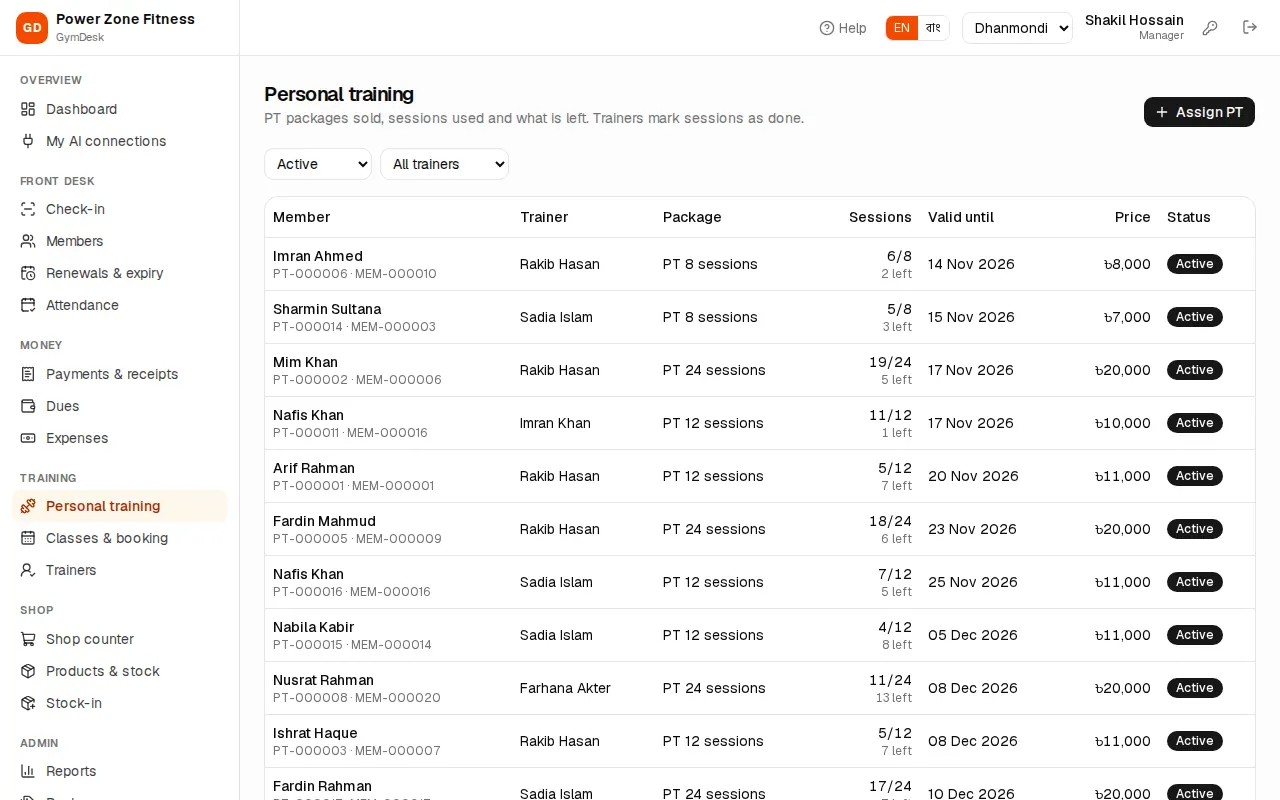
The Personal training list shows every PT client: member, trainer, package, sessions used and left, valid until, price and status. Filter by Active, Completed, Cancelled or All, and by trainer. Trainers see only their own clients.
Logging sessions
Open a PT client (click the member in the list) to see sessions left, valid until, commission per session, what the trainer has earned so far, and the session history.
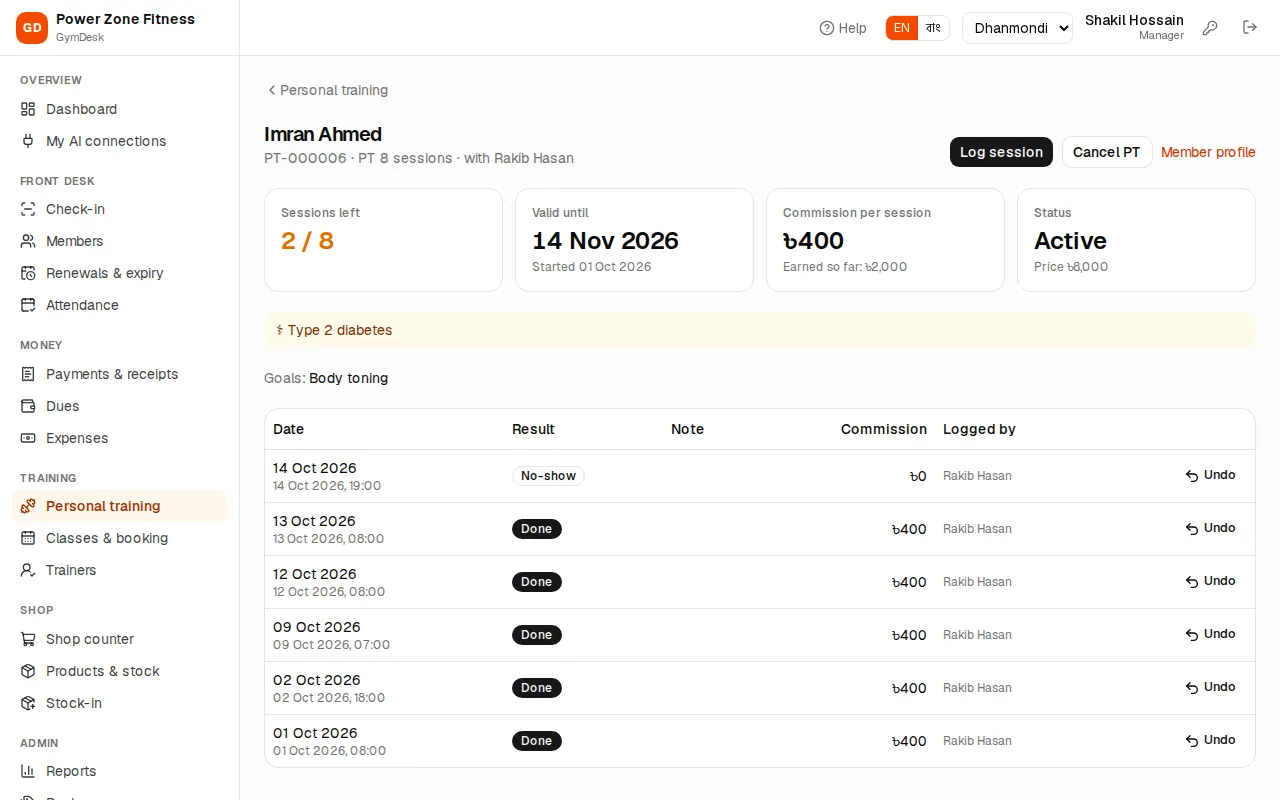
The trainer, the manager or the owner logs sessions (the front desk can see them but not log them).
- Press Log session.
- Date, Result: Done, or No-show (uses a session).
- Note (for example "Leg day, increased squat to 60 kg") and Save. "Session logged."
A Done session earns the trainer's commission; a No-show uses up a session but earns nothing. When all sessions are used the PT package becomes Completed. After the Valid until date it shows as Expired; a session dated after that day cannot be logged.
A session logged by mistake: press Undo on it. The session goes back to the client. A trainer can undo only the same day; older sessions need a manager.
The trainer's own page
A trainer who signs in lands on My PT clients: "Your PT clients, classes and commission."
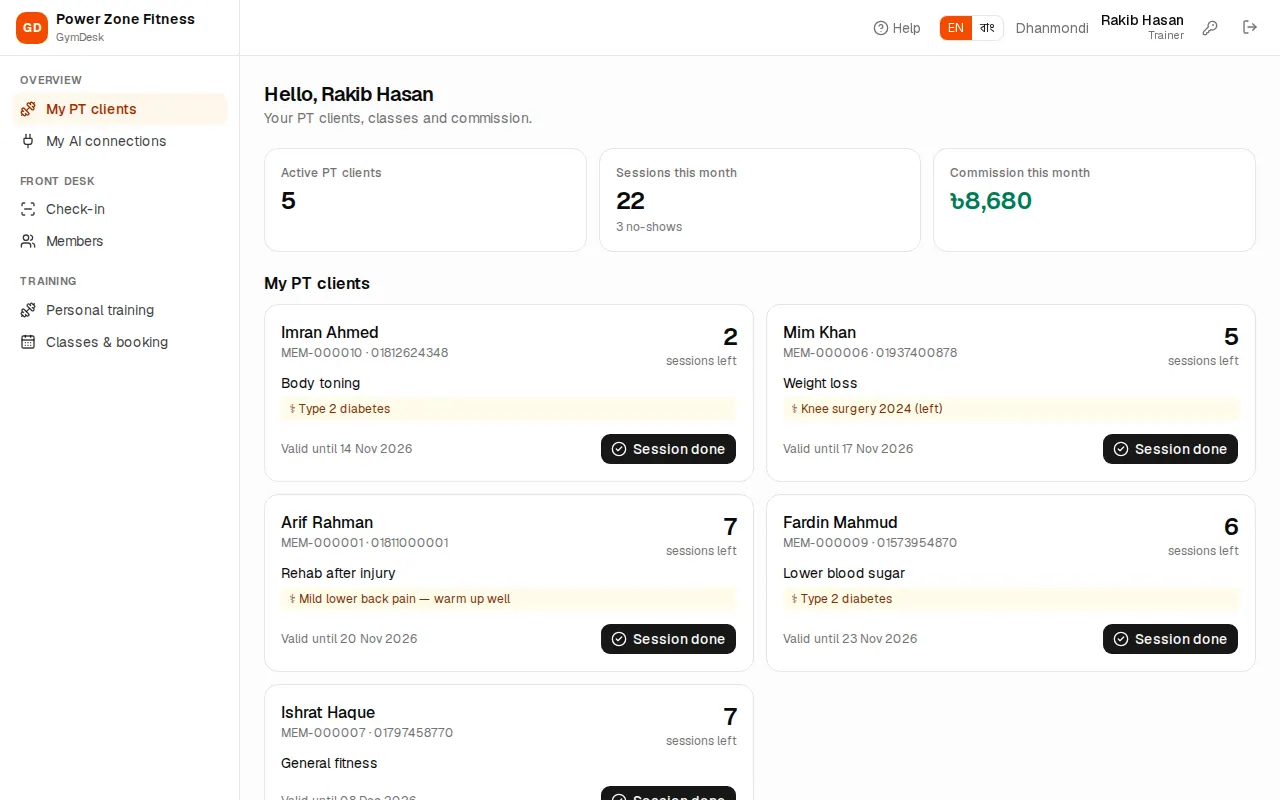
- Tiles: Active PT clients, Sessions this month (with no-shows) and Commission this month.
- My PT clients: each client with sessions left and valid until. After a session press Session done and confirm — it is logged for today. Done today shows it is already logged. Click the name to log a no-show or another date.
- My classes this week: the trainer's classes with booked places and waitlist; click one to mark attendance (see Classes and booking).
If the page says "Your login is not linked to a trainer profile yet", ask the manager to pick your login on your trainer profile under Trainers.
Cancelling PT
Manager and owner: on the PT client page press Cancel PT, type a Reason and confirm. "An unpaid bill is voided. Money already paid is refunded by hand if agreed."
Trainer commission
The Commission section at the bottom of Trainers shows, for the chosen dates, each trainer's Sessions done, No-shows and Commission, with a Total. Detailed report opens the Trainer commission report with every session (see Reports).
Pay the commission outside GymDesk (for example with the salary) and record it under Expenses › Trainer commission.