Messages, reports & licence
Licence, online payments and AI
The JonakiSoft licence and its features, grace period and lock screen, setting up online payments (SSLCommerz, bKash, Nagad) for the member portal, JonakiSoft's central account, and connecting AI assistants (Claude, ChatGPT) with MCP
Who it is for:OwnerManagerFront deskTrainer
On this page
This chapter covers three things the owner sets up once: the licence (what your GymDesk plan includes), online payments (members paying from the portal), and AI assistants (asking Claude or ChatGPT questions about your gym's data).
Your licence and features
GymDesk is licensed by JonakiSoft. The Licence & features card on Settings shows "What your JonakiSoft licence includes. It is checked once a day and updated at once when JonakiSoft changes it."
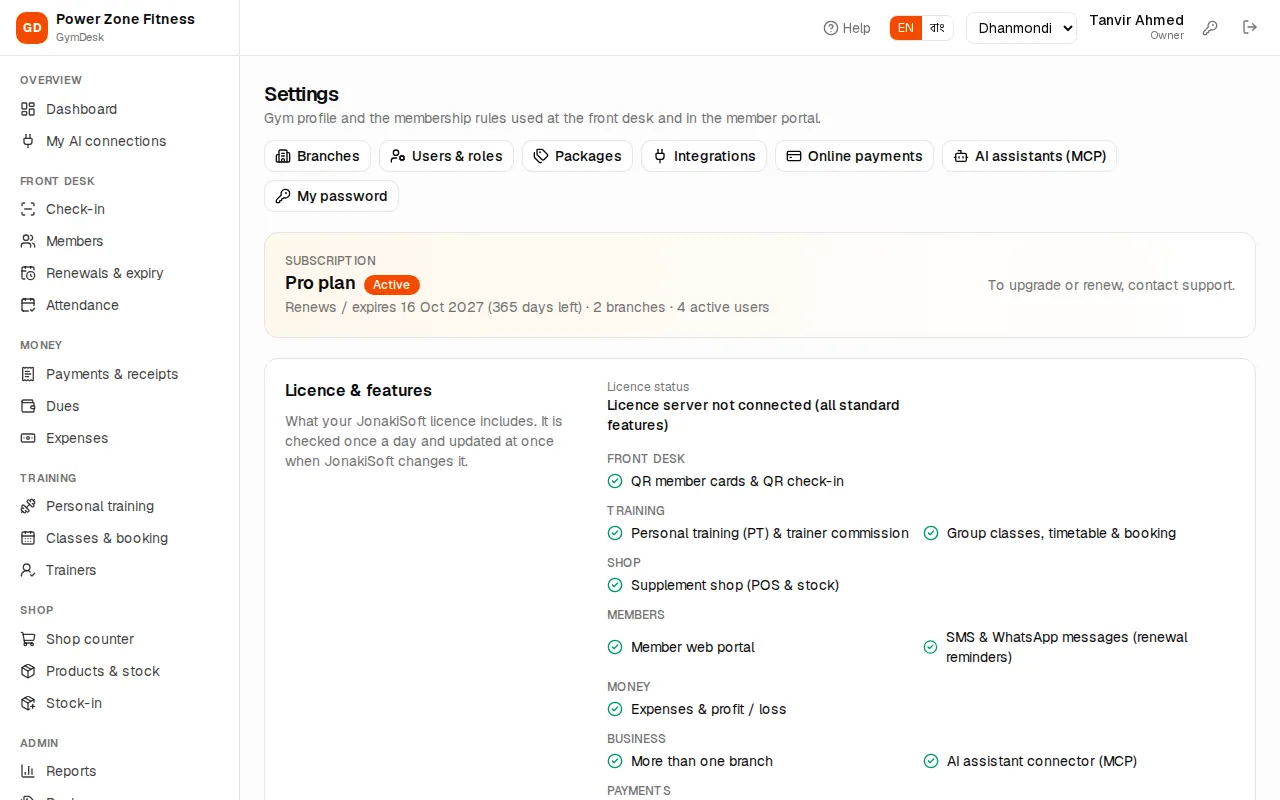
- Licence status, Plan, Valid until (with the grace date, if any) and Last synced.
- The features, by group, each ticked or marked "(not in plan)": QR member cards & QR check-in, personal training & trainer commission, group classes, supplement shop, member web portal, SMS & WhatsApp messages, expenses & profit / loss, more than one branch, online payments, AI assistant connector (MCP).
- Sync licence now fetches the latest licence at once — use it after JonakiSoft tells you they changed your plan.
A module that is not in your plan disappears from the menu. Opening its page shows "(module) is not part of your plan — Contact JonakiSoft to add it to your licence. Everything else keeps working." Staff other than the owner see "Ask your gym's owner, or contact JonakiSoft to add it to the licence."
When the licence expires
- Grace period: after the end date GymDesk keeps working for a few days. A yellow banner on every page says "Your licence has expired. GymDesk keeps working until (date); please renew." Contact JonakiSoft to renew.
- Locked: after the grace period, staff see the Licence status page instead of the app: "All your members, memberships, payments and attendance records are saved. They open again as soon as the licence is active. The member portal is paused until then." It shows JonakiSoft's phone and email.
Nothing is deleted. As soon as JonakiSoft renews the licence (or you press Sync licence now afterwards) everything opens again.
Online payments for the member portal
With the online payments feature, members pay their dues and renewals from the member portal with bKash, Nagad or SSLCommerz (cards, internet banking, mobile wallets). The owner sets it up under Online payments: "Your own SSLCommerz, bKash and Nagad merchant accounts. Members pay their dues and renewals online in the member portal; these accounts receive the money."
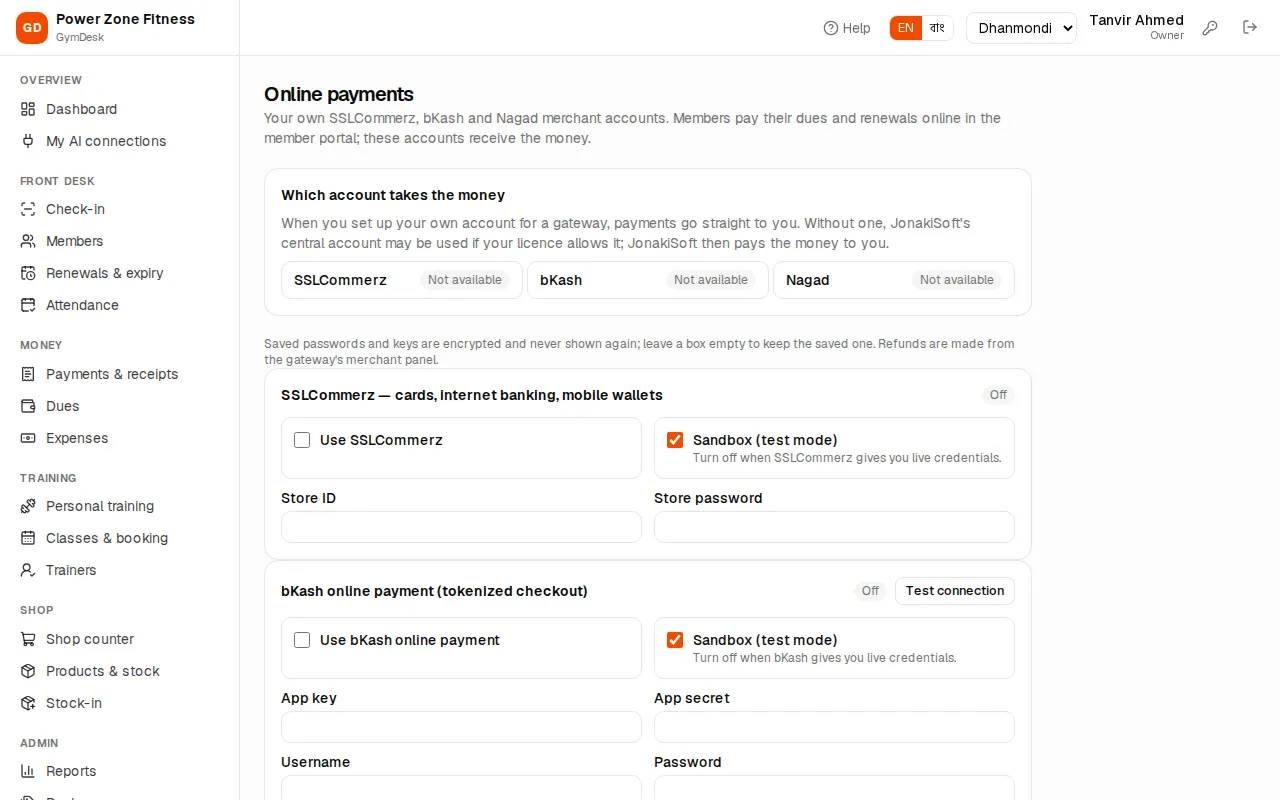
Which account takes the money: "When you set up your own account for a gateway, payments go straight to you. Without one, JonakiSoft's central account may be used if your licence allows it; JonakiSoft then pays the money to you." The table shows each gateway as Your account, JonakiSoft central or Not available.
To use your own account:
- Get merchant credentials from SSLCommerz, bKash (tokenized checkout) or Nagad (merchant checkout).
- In that gateway's box tick Use SSLCommerz (or Use bKash online payment / Use Nagad online payment).
- Enter the credentials: SSLCommerz Store ID and Store password; bKash App key, App secret, Username and Password; Nagad Merchant ID, Merchant number, Merchant private key and Nagad public key.
- Keep Sandbox (test mode) ticked while testing; untick it when the gateway gives you live credentials.
- Press Save payment settings.
"Saved passwords and keys are encrypted and never shown again; leave a box empty to keep the saved one. Refunds are made from the gateway's merchant panel."
Recent online payments lists what members started in the portal — date, member, for (renewal or dues), gateway, account, amount and status. "Only payments confirmed by the gateway become receipts." Confirmed payments appear in Payments & receipts marked Online, exactly like counter receipts.
Payments collected by JonakiSoft (when the central account was used) shows how much JonakiSoft collected for you, the gateway fees, what has been settled and what is still payable.
AI assistants (MCP)
With the AI assistant connector (MCP) feature you can connect Claude, ChatGPT or another AI app to GymDesk and ask questions in plain language, for example "Which members expire this week and owe money?", "How much did we collect this month?" or "Who are Rakib's PT clients with few sessions left?". The AI app signs in as you and sees only what your role can see.
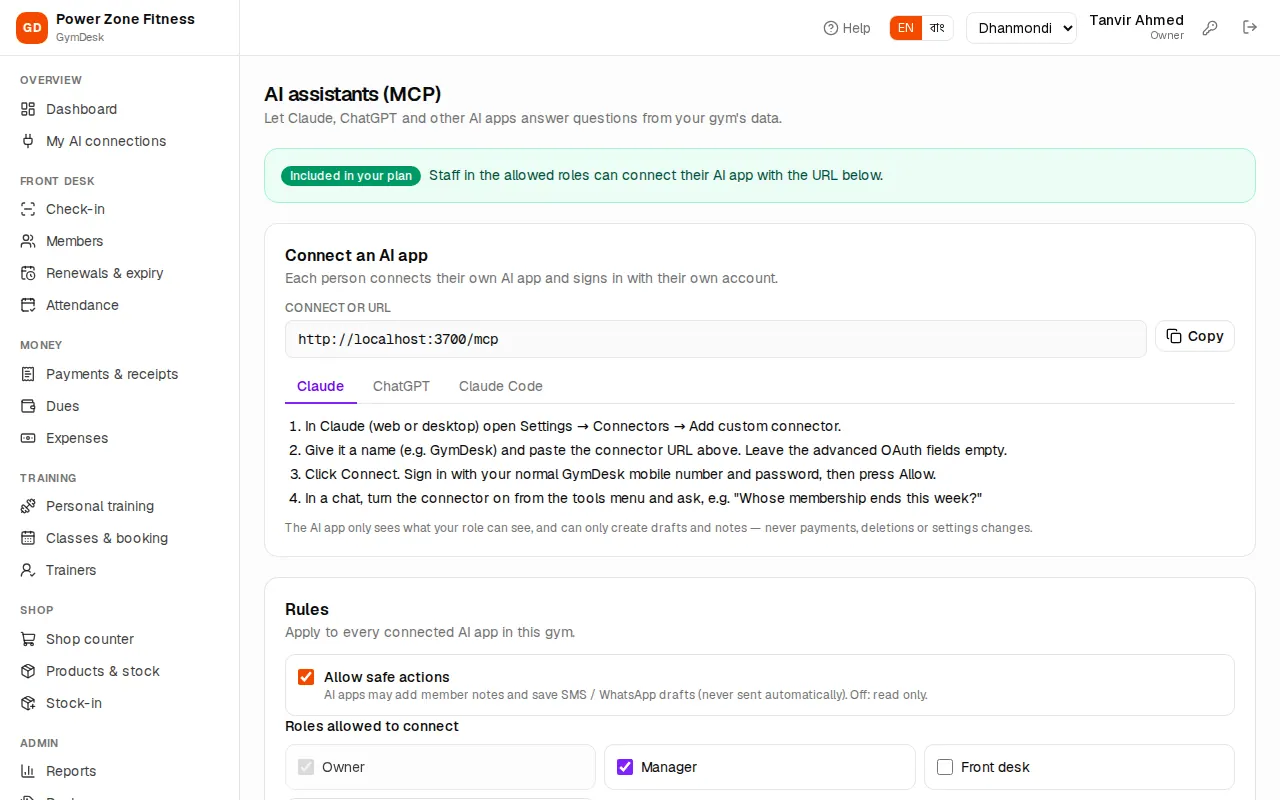
Owner / manager — Settings › AI assistants (MCP):
- Whether the connector is Included in your plan or Not in your plan.
- The Connector URL with a Copy button:
https://gym.jonakisoft.com/mcp(your gym's own address followed by/mcp). - Rules: Allow safe actions (on: the AI app may add a member note or prepare an SMS / WhatsApp or renewal reminder as a draft — nothing is ever sent or paid automatically; off: read only) and Roles allowed to connect.
- Connected apps (who connected which app, with Revoke) and Recent activity (the last requests from AI apps).
Connecting Claude:
- In Claude (web or desktop) open Settings → Connectors → Add custom connector.
- Give it a name (for example "GymDesk") and paste the connector URL. Leave the advanced OAuth fields empty.
- Press Connect. GymDesk's sign-in page opens: sign in with your normal mobile number and password.
- GymDesk asks whether to allow the app, showing the app's name and what it may do (read your data, take safe actions). Press Allow.
- In a chat, turn the connector on from the tools menu and ask your question.
Connecting ChatGPT: open Settings → Apps & Connectors → Advanced, turn on Developer mode (needs a plan that allows custom connectors), create a connector with the connector URL and authentication OAuth, then sign in and press Allow.
My AI connections (in the sidebar for every staff role that may connect) lists the AI apps connected to your own account, with Revoke to disconnect one. Changing your password also disconnects them all.