Members & memberships
Members
The member list and its filters, adding a member with the first membership and payment in one step, the member profile, photo, health notes, body measurements, QR cards, portal PIN and archiving
Who it is for:OwnerManagerFront deskTrainer
On this page
Every person who joins the gym is a member with a member number (for example MEM-000123), a home branch, a QR card and, if you want, a member-portal PIN. Their memberships, bills, receipts, check-ins, PT and class bookings all hang off the member profile.
The member list
Open Members in the sidebar.
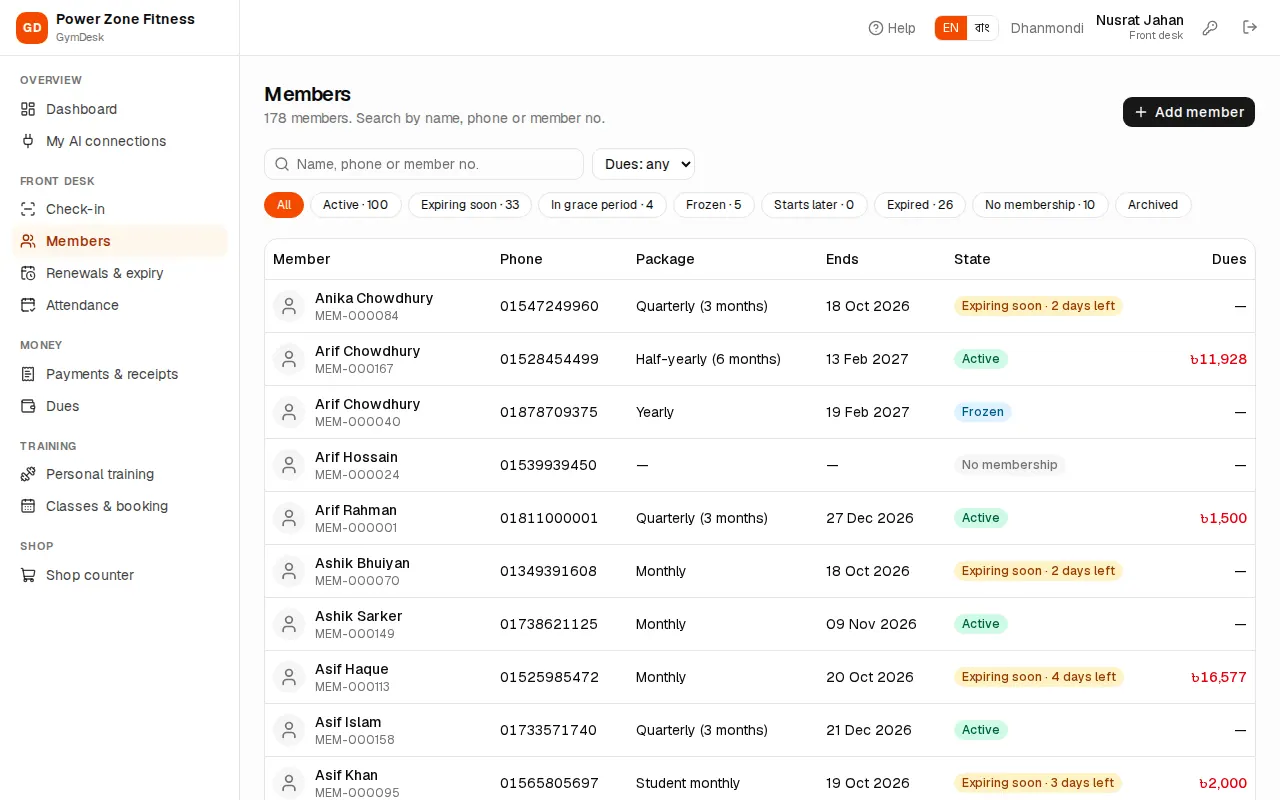
- Search by name, phone or member no.
- All branches drop-down (gyms with several branches): members whose home branch is that branch.
- With dues (people who handle money): only members who owe money.
- The chips filter by membership state, each with a count: All, Active, Expiring soon, In grace period, Frozen, Starts later, Expired, No membership and Archived.
Each row shows the member's package, end date, state and (for money roles) dues in red. Click a name to open the profile. On a phone the list shows as cards.
What the states mean:
| State | Meaning |
|---|---|
| Active | Membership running |
| Expiring soon | Ends within the "expiring soon" days (Settings) |
| In grace period | Ended, but still within the grace days — may come in, flagged |
| Expired | Ended and past the grace days |
| Frozen | On hold; the end date moves out by the frozen days |
| Starts later | Sold with a future start date |
| No membership | Never bought one, or the last one was cancelled |
Adding a member
Front desk, manager and owner can add members. Details, the first membership and the payment are saved in one step.
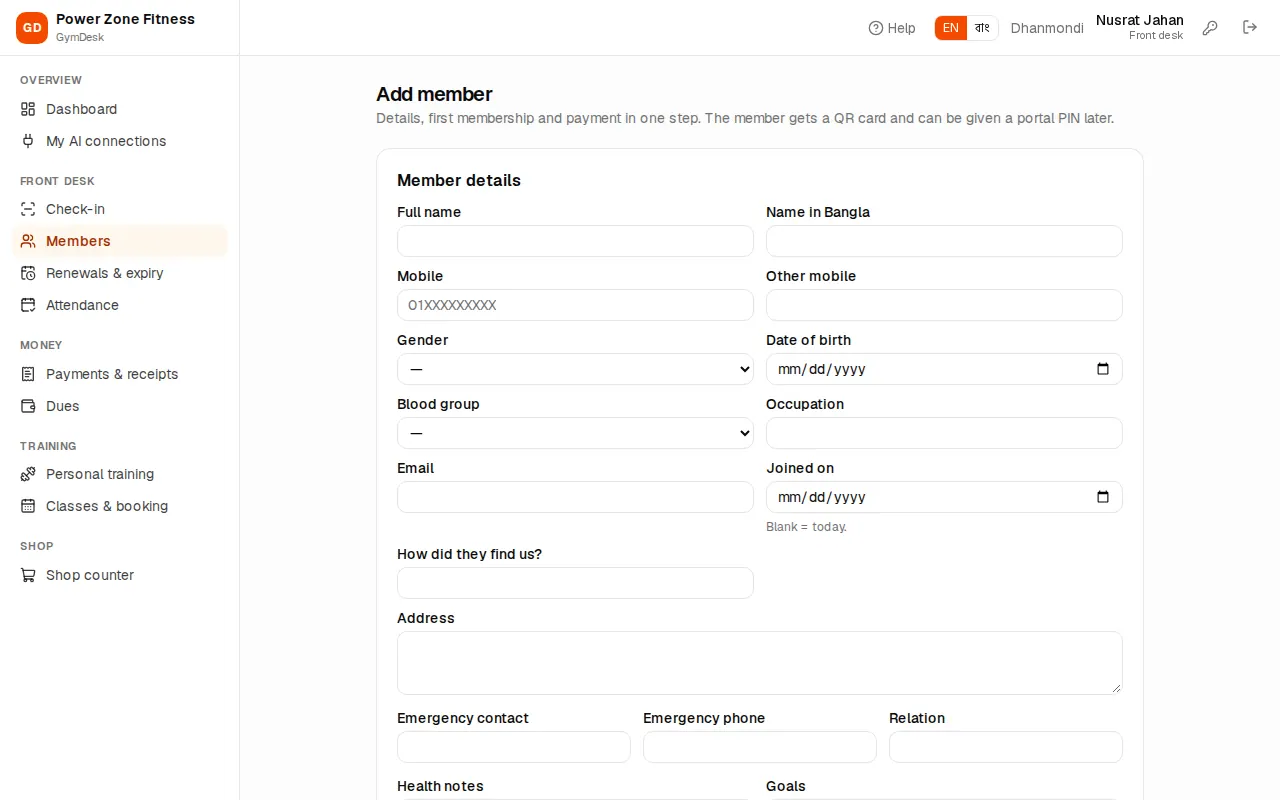
- Press Add member (on the member list or the dashboard).
- Member details: Full name (required), Name in Bangla, Mobile (required, the member's portal login and SMS number), Other mobile, Gender, Date of birth, Blood group, Occupation, Email, Home branch, Joined on (blank = today), How did they find us?, Address, Emergency contact, Emergency phone and Relation.
- Health notes — injuries, conditions, medicine. They are shown to trainers and on the check-in screen, so write anything the floor staff must know (for example "knee surgery 2024 — no deep squats").
- Goals (for example "Weight loss") and Note.
- Membership & payment: pick the Package (or No package yet), the Start date (blank = today), and tick Waive the admission fee if you are not charging it.
- Discount: an amount (৳) or a percentage. The discount applies to the package price only, not the admission fee. Front desk can give up to the Front desk discount limit from Settings; bigger discounts need a manager.
- Paid now (৳), Method (Cash, bKash, Nagad, Card, Bank) and, for bKash / Nagad, the Transaction ID. If less is paid, "The rest stays as dues."
- Press Save member.
GymDesk gives the member a number and a QR code, makes the bills and the money receipt, and (if the SMS gateway is set up and the welcome message is on) sends a welcome SMS with the member no., package and end date.
The member profile
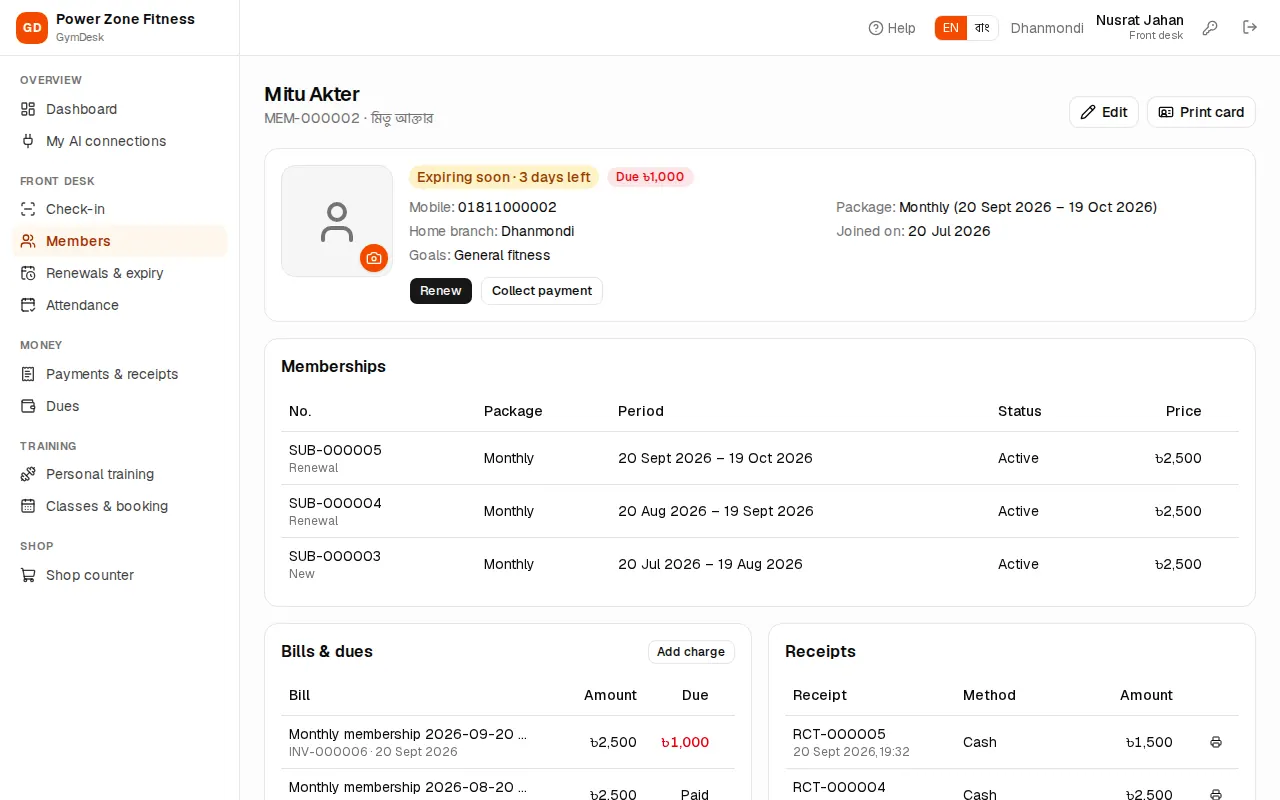
At the top: photo, state badge (with days left), dues in red, mobile, current package and period, home branch, join date, visits used (for limited packages) and goals. Health notes show in a yellow box with ⚕. Buttons: Renew (or Sell membership), Collect payment, Edit and Print card.
The cards below:
- Memberships — every membership with its number, period, status and price, and the Freeze, Unfreeze, Upgrade and Cancel buttons (see Memberships and renewals).
- Bills & dues and Receipts — only for people who handle money (see Payments, dues and expenses).
- Recent check-ins — date and time, branch, and whether the member was let in, let in by override, or refused.
- Personal training — PT packages with trainer and sessions used.
- Class bookings — booked, waitlisted, attended or no-show.
- Body measurements — see below.
- Profile — the personal details.
- Access — the member portal, the QR card and archiving (staff who manage members).
Trainers see the profile, health notes, check-ins, PT and measurements, but no money.
Photo: press Change photo on the photo box and pick a picture (on a phone or tablet you can take one with the camera). The photo appears on the check-in screen, so the desk can see it really is that person.
Editing details: press Edit, change what you need and press Save.
Body measurements
- On the profile press Add measurement.
- Enter the Date and whatever you measured: Weight (kg), Height (cm), Body fat (%), Chest, Waist, Hips, Arm, Thigh (cm), Resting heart rate and a Note.
- Save.
The table shows every measurement with the BMI worked out from weight and height (the last height is reused if you leave it empty). Trainers use it to show progress.
QR member cards
Every member has a QR code for the check-in desk (with the QR check-in feature in the licence).
- Print card on the profile opens a printable card (credit-card size, 8 per A4 page) with photo, name, member no., branch and QR code. Print it on card paper or laminate it.
- To print the cards of every active member of the current branch at once, open
/print/member-cards. - Lost card? Under Access › QR card press New QR code. "The old card will stop working." Then print a new card.
Members can also show the QR code from the member portal on their phone instead of a card.
Member portal access
Under Access › Member portal:
- Press Activate portal (or Reset PIN if it is already active).
- A dialog shows the new 6-digit PIN once. "Tell the member this PIN (it was also sent by SMS if a gateway is set up). They sign in at /portal with their mobile number."
- Turn off stops the member's portal access.
The line under Member portal shows when the PIN was set and the member's last portal sign-in. See Member portal.
Archiving a member
When someone leaves for good, archive them instead of deleting: under Access press Archive and confirm. "Archived members are hidden from lists and can't check in." Their history stays. Find them with the Archived chip and press Restore to bring them back.